Using iCommands
Since Yoda is based on iRODS technology, it is possible to transfer data to and from Yoda using the iRODS communication protocol. This protocol can be used to transfer large amounts of data in an efficient way. The iCommands command-line tools are the official standard implementation of an iRODS protocol client.
The iCommands are installed on the ADA and Snellius HPC clusters and can be used to transfer data to and from Yoda. Make sure to create the irods environment file first.
Installing iRODS iCommands
Native iRODS iCommands packages are available for CentOS and Ubuntu.
Windows 10/11 users can run the iCommands in the Windows Subsystem for Linux. There is no officially supported iCommands installation for Mac OSX, you could install the iCommands inside a Linux VM.
gocommands is an alternative command-line client you could try if your OS does not support iCommands.
The readme.md on the github repository has installation instructions. You can find the details of creating the irods environment file below. Once installed you can execute common iCommands as gocmd <command>, e.g. gocmd init, gocmd ls, gocmd get, gocmd put, gocmd rsync.
Installing iCommands on CentOS
The following should work to install the iCommands on CentOS 8.
- First add the package source:
sudo yum -y install wget epel-release yum-plugin-versionlock
sudo rpm --import https://packages.irods.org/irods-signing-key.asc
wget -qO - https://packages.irods.org/renci-irods.yum.repo | sudo tee /etc/yum.repos.d/renci-irods.yum.repo- Note that the latest irods version is 5, this client is not compatible with the Yoda irods version.You can list the available versions with:
sudo yum --showduplicates list irods-icommands- Install the latest available 4.x.x version:
sudo yum -y install irods-runtime-4.3.0 irods-icommands-4.3.0
sudo yum versionlock irods-runtime irods-icommands
Upgrading from an earlier version
If you have put packages irods-runtime and irods-icommands on hold, you should first release the hold. Otherwise, the instruction is the same as above.
# Show applied locks, if any
yum versionlock list
yum versionlock delete irods-runtime irods-icommands
Installing iCommands on Ubuntu
The following should work to install the iCommands on Ubuntu 22 or 24.
- First add the irods package source.
wget -qO - https://packages.irods.org/irods-signing-key.asc | sudo apt-key add -
echo "deb [arch=amd64] https://packages.irods.org/apt/ $(lsb_release -sc) main" | sudo tee /etc/apt/sources.list.d/renci-irods.list
sudo apt update- Note that the latest irods version is 5, this client is not compatible with the Yoda irods version. You can check which versions are available with:
sudo apt show irods-icommands -a- Take the latest 4.x version, at the time of writing:
sudo apt -y install irods-runtime=4.3.4-0~noble irods-icommands=4.3.4-0~noble- Make sure to hold the package to prevent inadvertently updating to version 5:
sudo apt-mark hold irods-runtime irods-icommandsUpgrading from an earlier version
If you have put packages irods-runtime and irods-icommands on hold, you should first release the hold. Otherwise, the instruction is the same as above.
# Show applied holds, if any
apt-mark showhold
apt-mark unhold irods-runtime irods-icommands
Environment file
The iCommands need to be configured to connect to the right Yoda environment.
Please copy and paste this configuration into your ~/.irods/irods_environment.json configuration file.
You will need to change the example user name to your Yoda user name.
{
    "irods_host": "portal.yoda.vu.nl",
    "irods_port": 1247,
    "irods_home": "/vu/home",
    "irods_user_name": "xxx@vu.nl",
    "irods_zone_name": "vu",
    "irods_authentication_scheme": "pam_password",
    "irods_encryption_algorithm": "AES-256-CBC",
    "irods_encryption_key_size": 32,
    "irods_encryption_num_hash_rounds": 16,
    "irods_encryption_salt_size": 8,
    "irods_client_server_negotiation": "request_server_negotiation"
}Please note that irods_authentication_scheme has changed from pam to pam_password in Yoda 2.0.
You can also copy the contents from the “Data Transfer” page on the Yoda Portal: 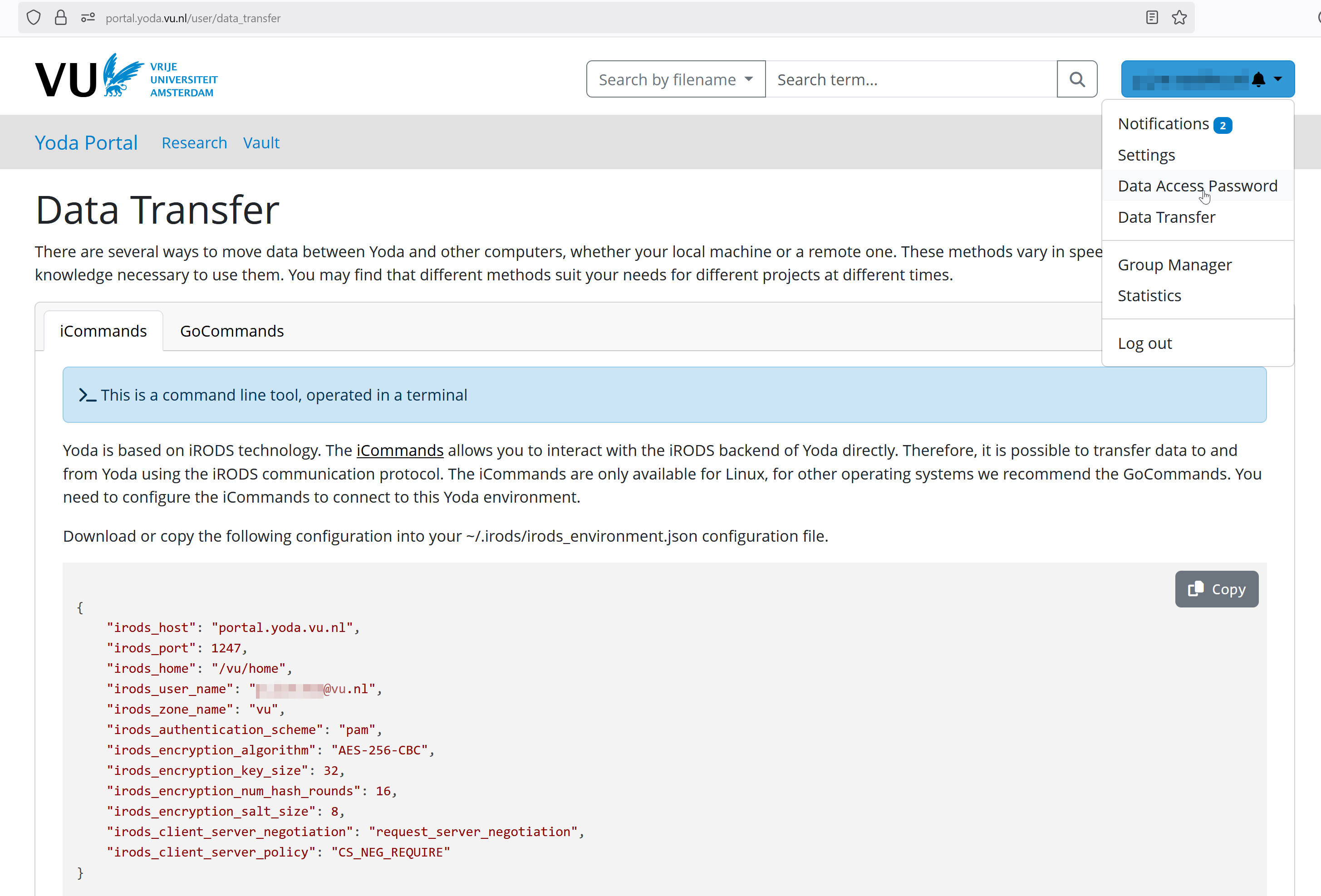
Getting started with iCommands
After installing and configuring the iCommands, you should be able to log in on the Yoda environment using the iinit command. Enter a Yoda Data Access Password when prompted.
These are the basic commands for navigation and data transfer:
- ipwd – Show current iRODS directory
- ils – List contents of a directory
- icd – Change directory
- iput – Upload files to Yoda
- iget – Download files from Yoda
- irsync – Synchronize local and remote directories
Your Yoda project folders are located under /vu/home.
By default an irods session will time-out after an hour and you will need to login again. You can extend the session by starting it with the --ttl <hours> option, e.g. iinit --ttl 8 will keep the session alive for 8 hours.
You can find a quick introduction of the iCommands on the SURF wiki or you can check out this training manual.
You can find a full list of available commands in the iRODS Docs.